

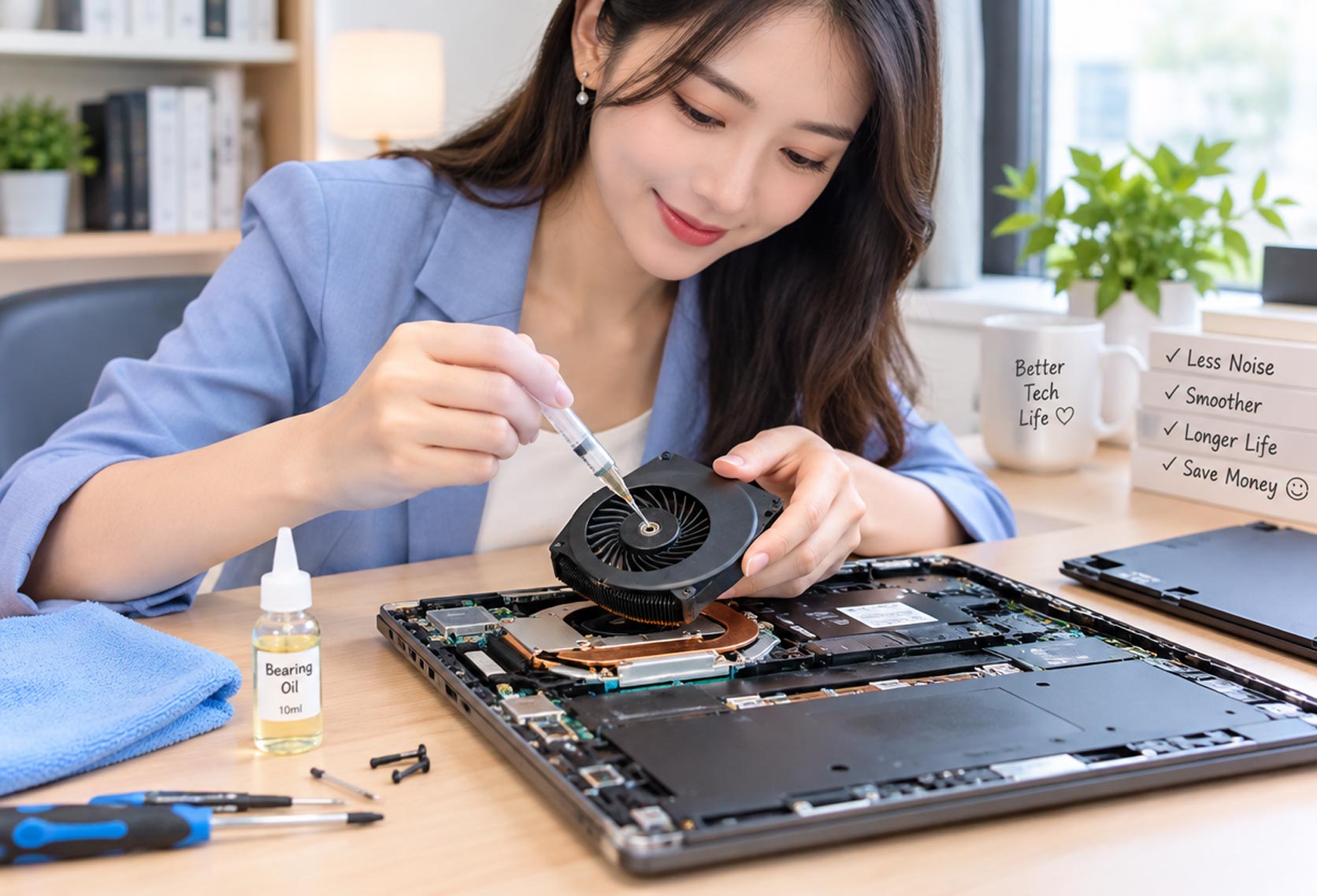
Do you want to reduce laptop fan noise without replacement?
Have you ever been stressed out by the noise of your laptop fan?
In fact, there is a way to noticeably reduce noise with just a $4 item, without replacing expensive laptop fan.
I’ve been using my laptop for a long time. but I find that my laptop fan makes a grinding/rattling noise lately.
The laptop fan is working well, so I don’t think it’s out of order.
How do I fix the laptop fan noise?
Understanding Why Laptop Fan Gets Noisy
Maybe loud laptop fan noise caused by the oil in the bearings drying out over a period of time.
Its best solution is simply to replace the laptop fan.
Depending on the laptop model, it’s not to difficult to replace.
but I wanted to try a cheaper option first: a $4 bottle of bearing oil.
Opening the Laptop and Inspecting the Fan
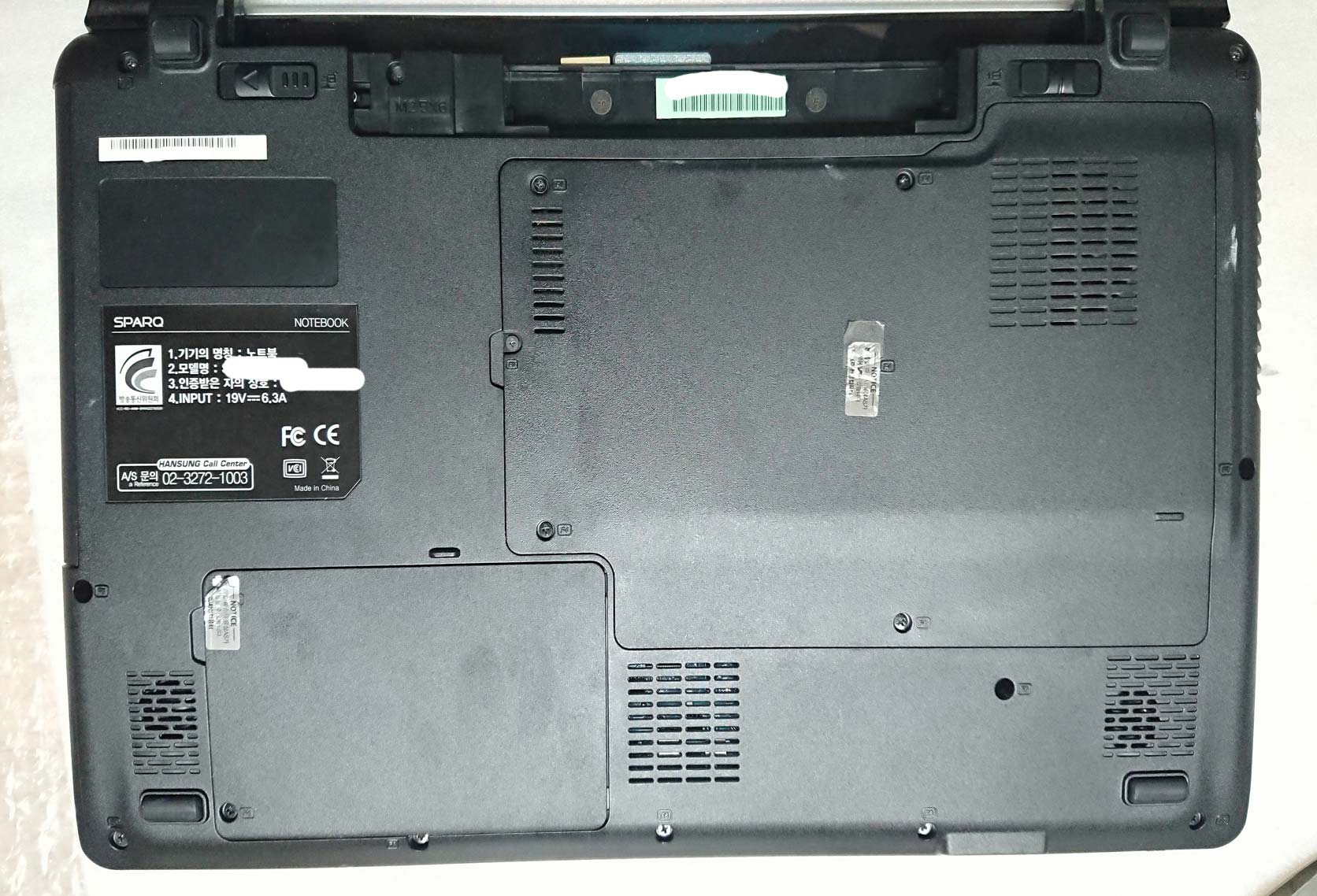
* Before opening the laptop, I shut it down, unplug it, and disconnect the battery where possible.
I Carefully removed the back panel, keeping track of all screws.
Always be careful not to lose the screw when you disassemble the laptop.
Cleaning the Laptop for Noise Reduction
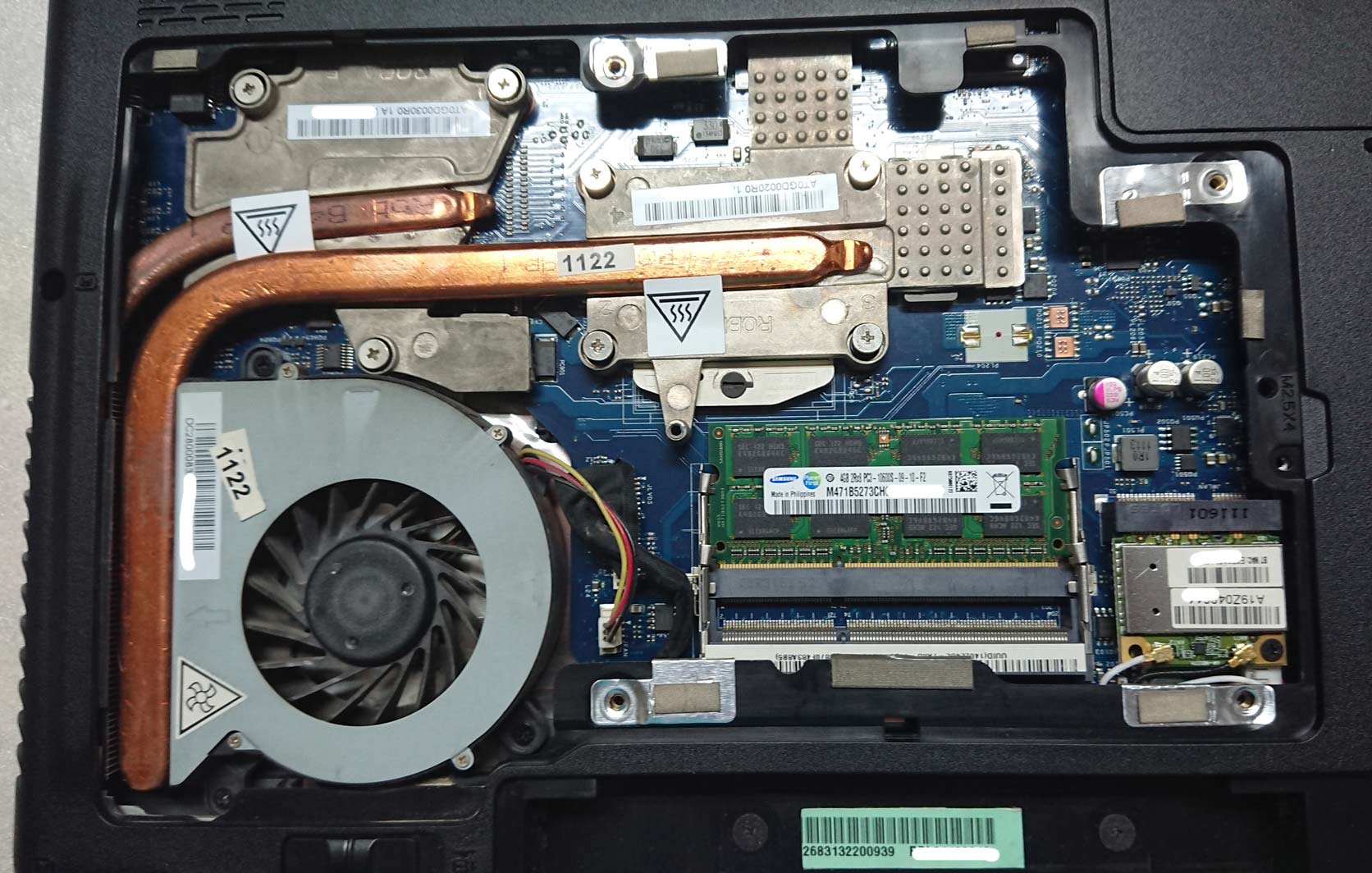
* The clogged dust can damage your laptop which causes it to run hot and noisy in several ways
if not cleaned regularly inside the laptop.
Cleaning up your laptop can help reduce overheating and extend your laptop’s lifespan.
It’s been a while since I removed the dust from the laptop fan, but it’s a little dusty.
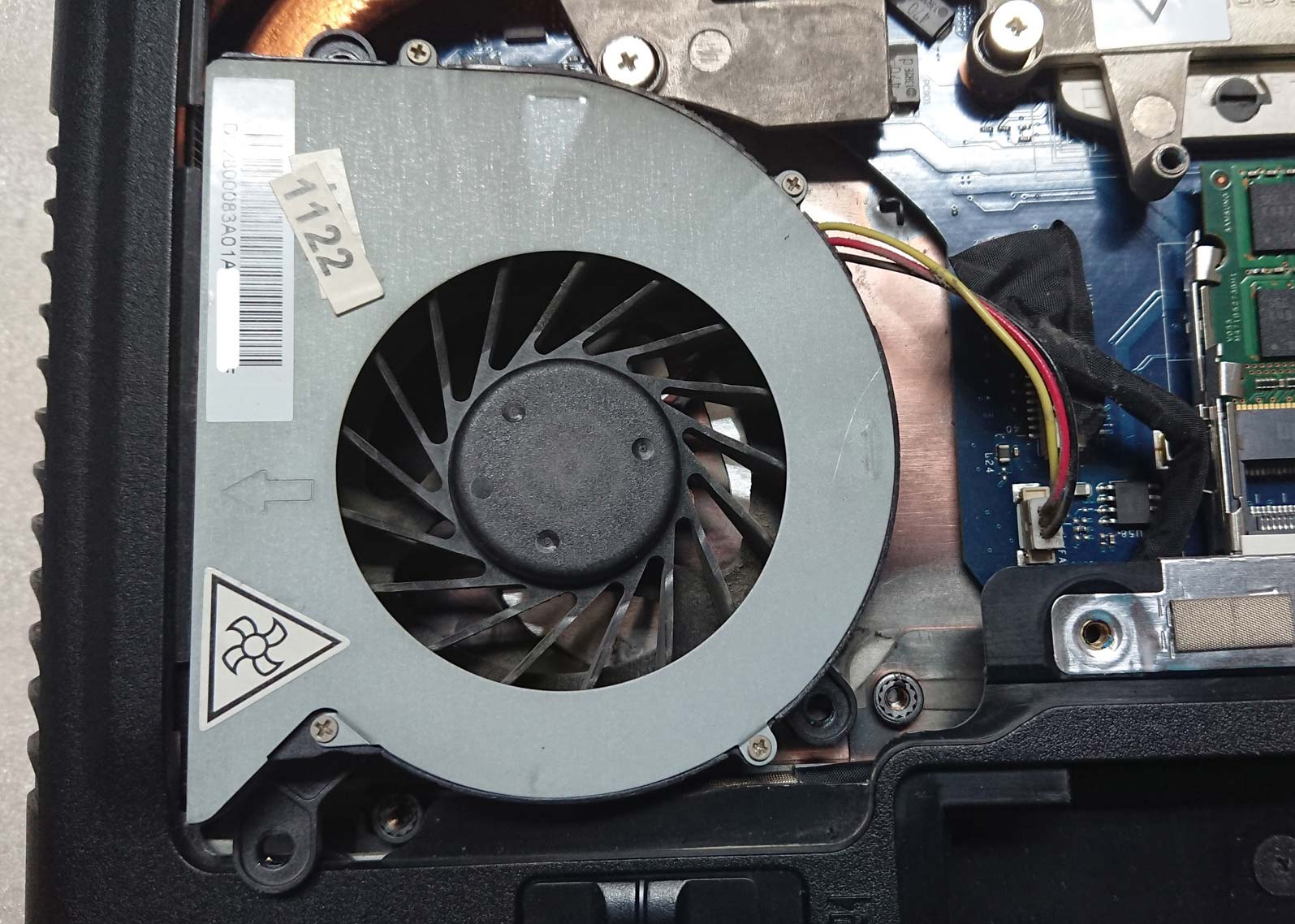
* Laptop fan enlarged.
Before removing any parts, I took pictures with my phone.
Always take pictures with your mobile phone before you disassemble and repair the electronics!
Photos help you remember where connectors, cables, and screws belong, making reassembly much easier.
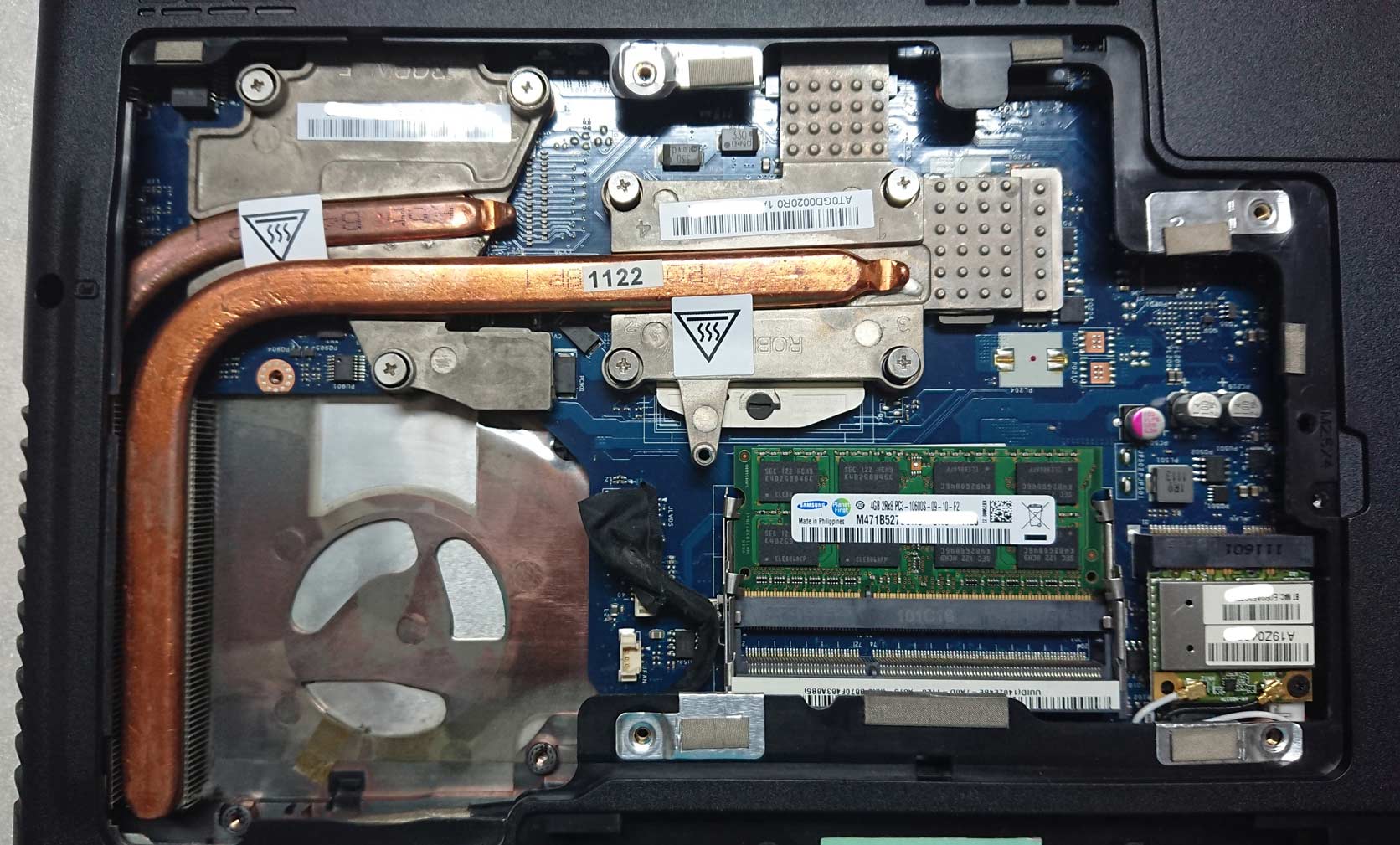
* As you can see from the inside of the laptop, It’s clean because I clean it regularly, right?
Identifying the laptop Fan
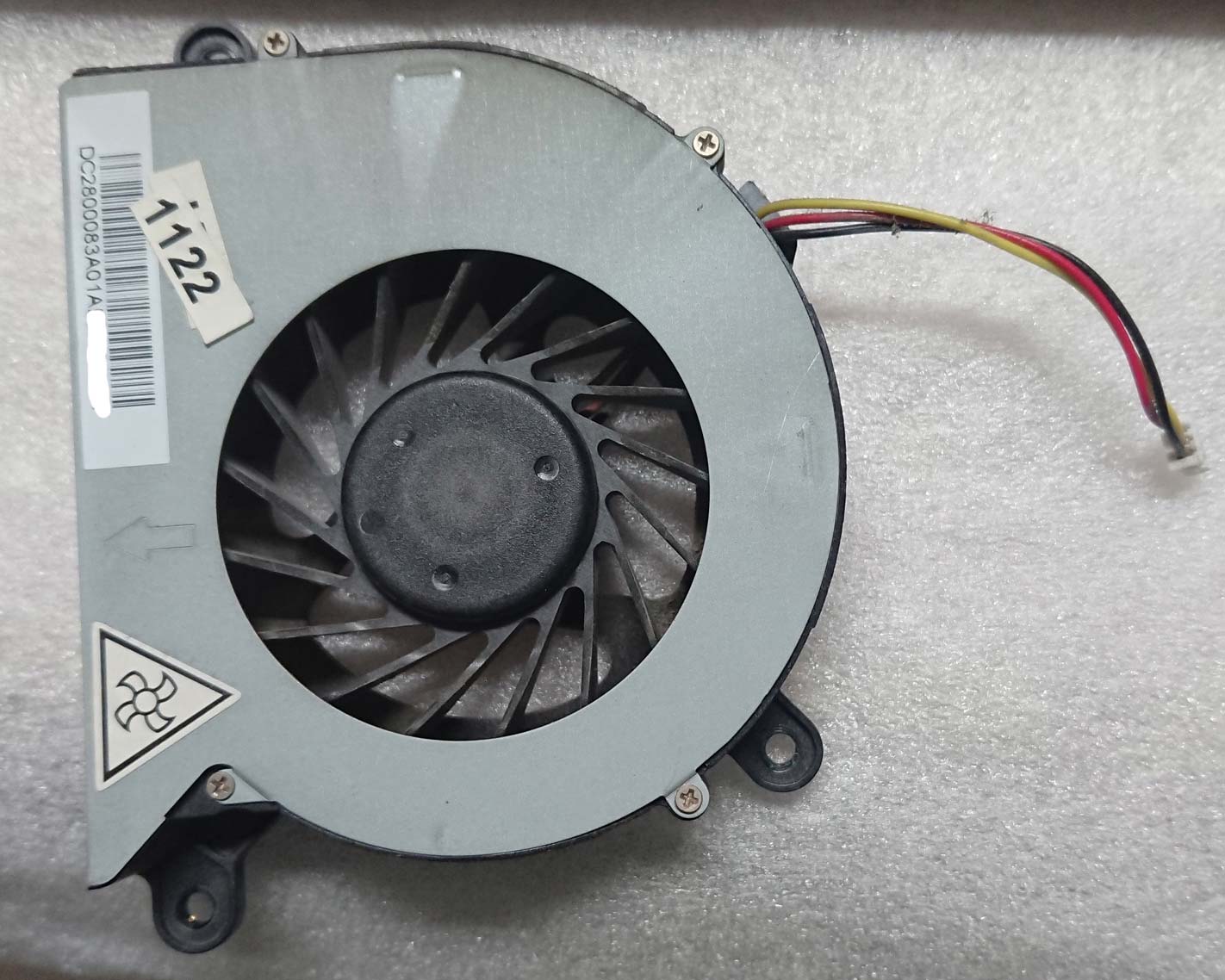
* I’ve carefully removed the laptop fan and popped off the fan connectors carefully,
then checked its model.
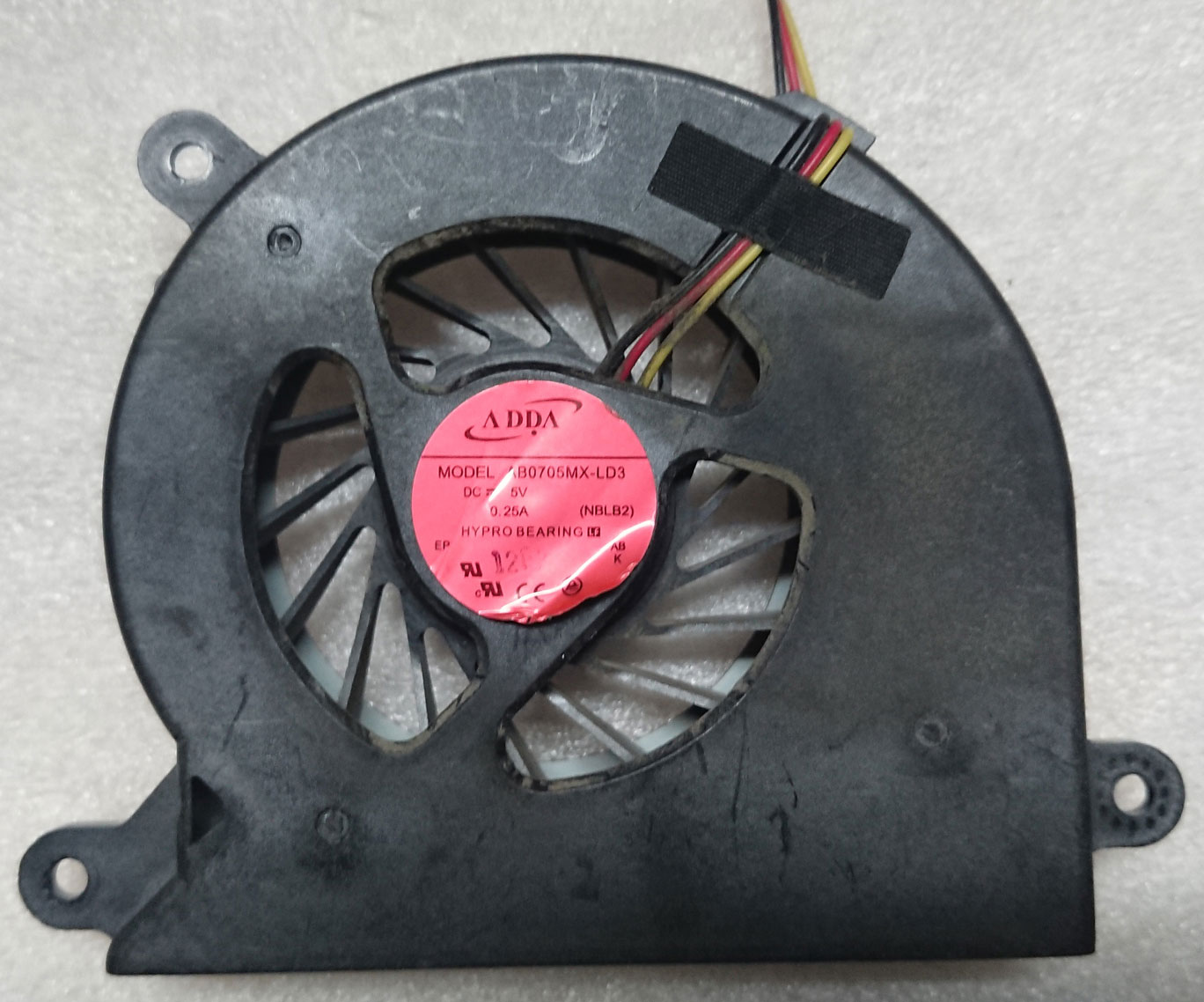
* My laptop fan is AB0705MX-LD3 from ADDA using HYPRO BEARING.
Choosing an bearing Oil
First of all, I checked to see if the laptop fan is being sold on internet shopping mall.
Rather than replacing the laptop fan, I would be better to oil it .
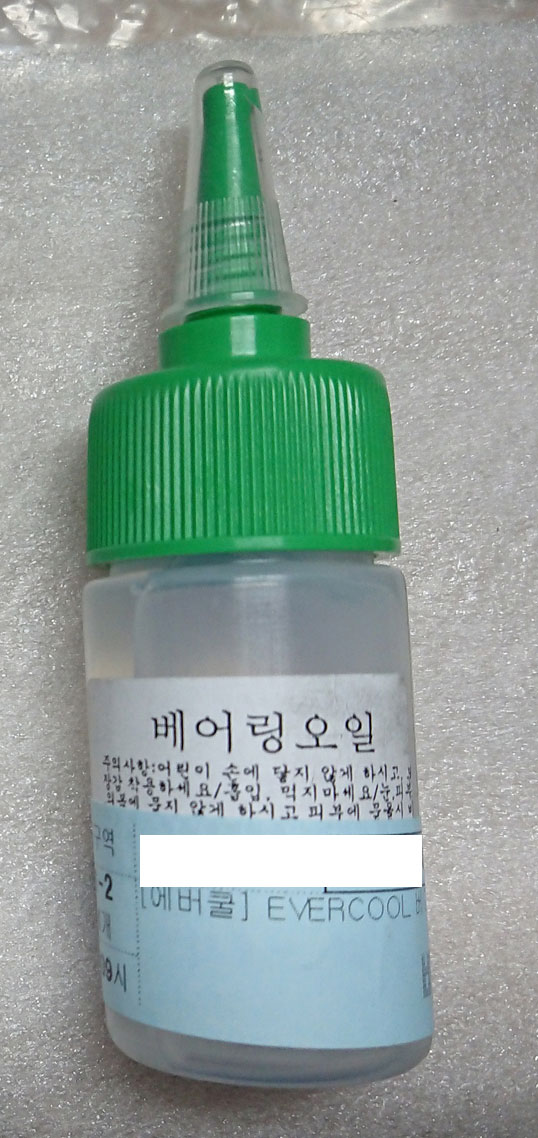
* This is the bearing oil 20ml I bought for $4 this time.
It can be used in bearings on the electronic devices.
Do not use standard WD-40 or an arbitrary household oil;
Check the manufacturer’s guidance and use only a lubricant compatible with the fan’s bearings.
Cleaning Laptop Fan and Accessing the Bearing
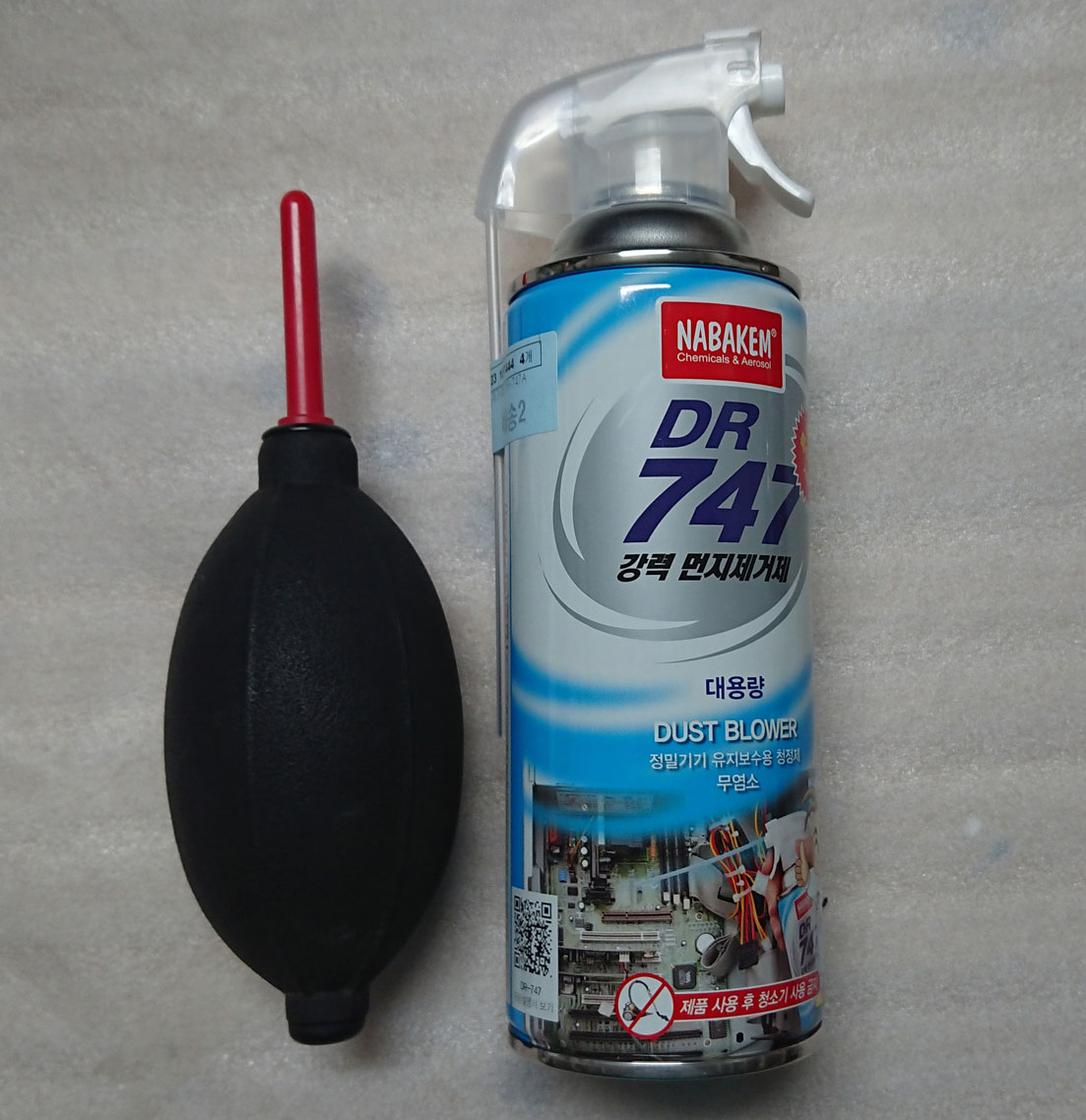
* First of all, I’m going to use this dust blower and air compressor to remove the dust.
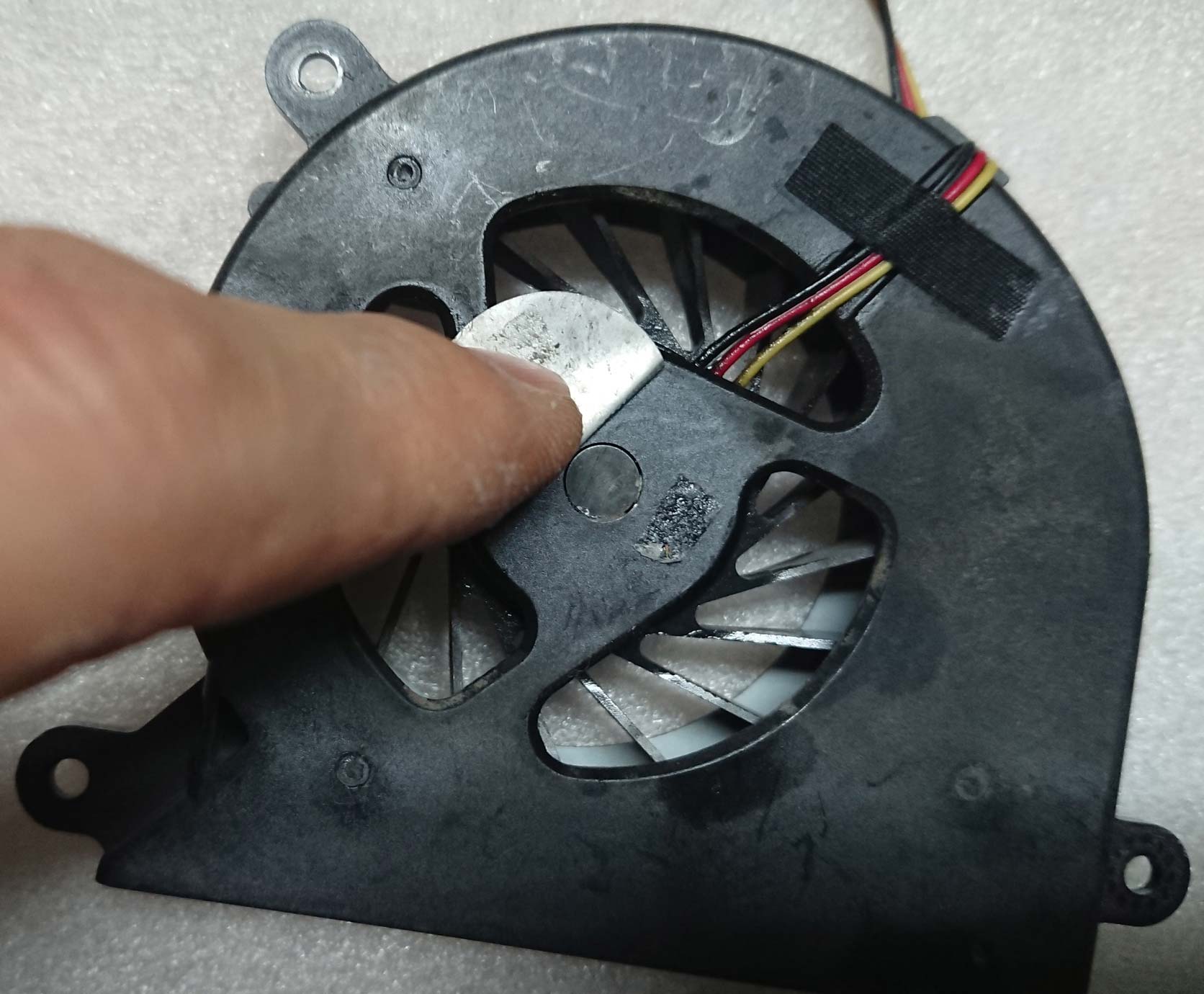
* I peeled off the round label covering the bearing area, but there was no lubrication hole.
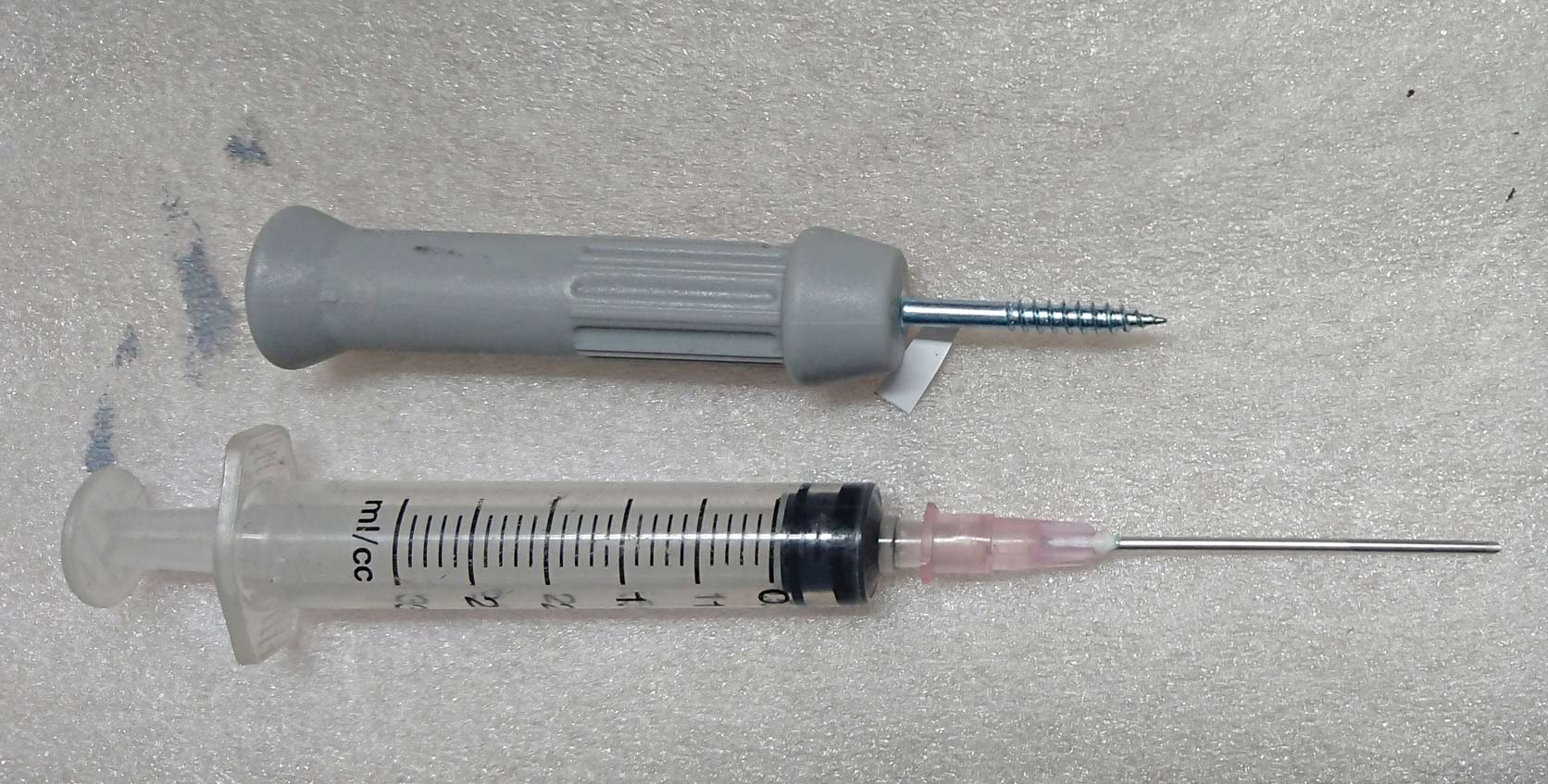
* I brought this tool to fix the laptop fan with no holes from home.
In this case, I used a syringe to reach the gap inside the hub without drilling.
Applying Oil and Reassembling the Laptop
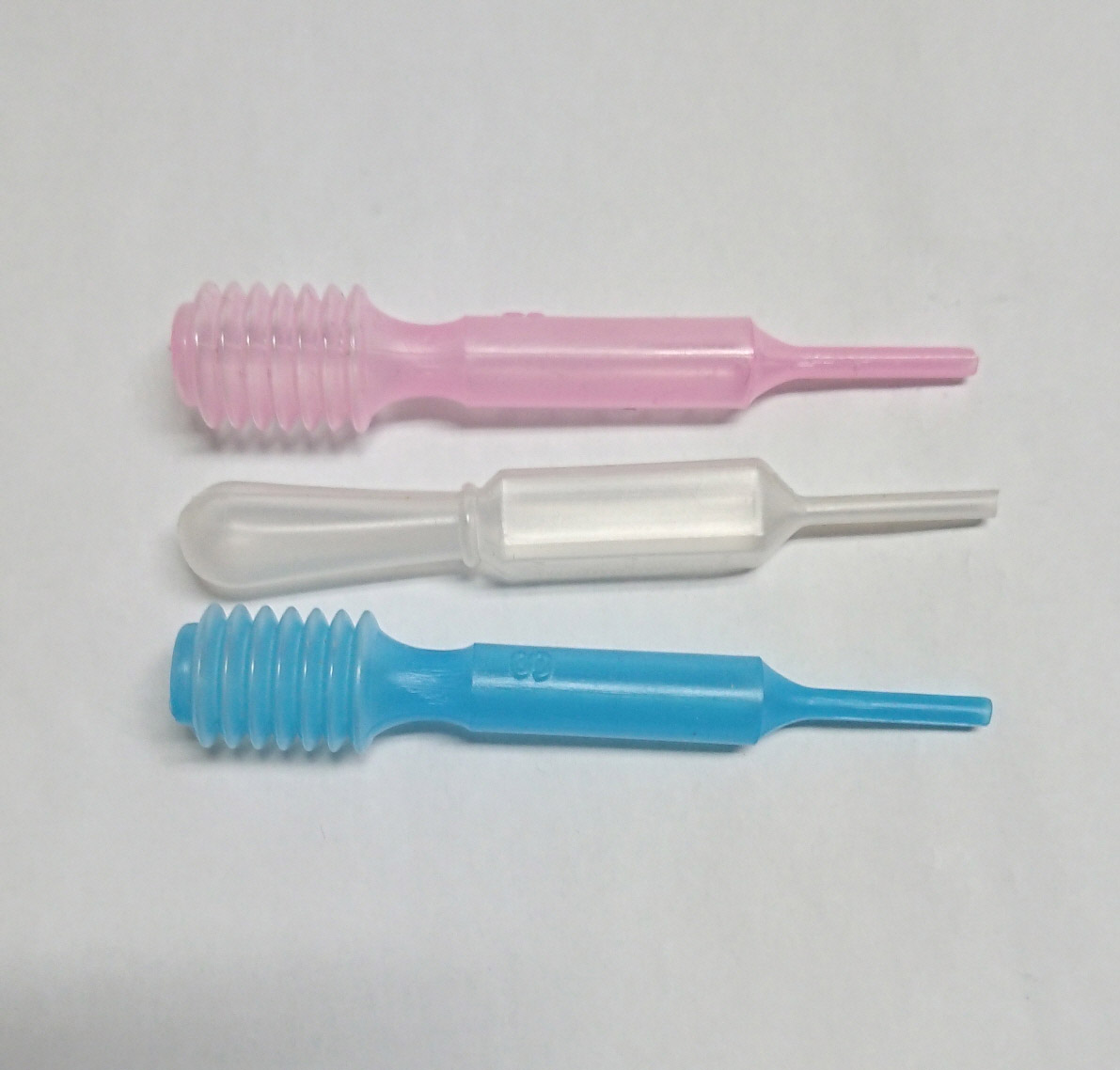
* If you have no syringe, you can use a dropper in the photo above.
I applied two or three drops of oil into the gap, gently rotated the fan, and wiped away the excess to prevent leakage.
A dropper may also help apply oil if the bearing is accessible.
A dropper is also useful for putting cosmetics into small containers.
Checking the Results
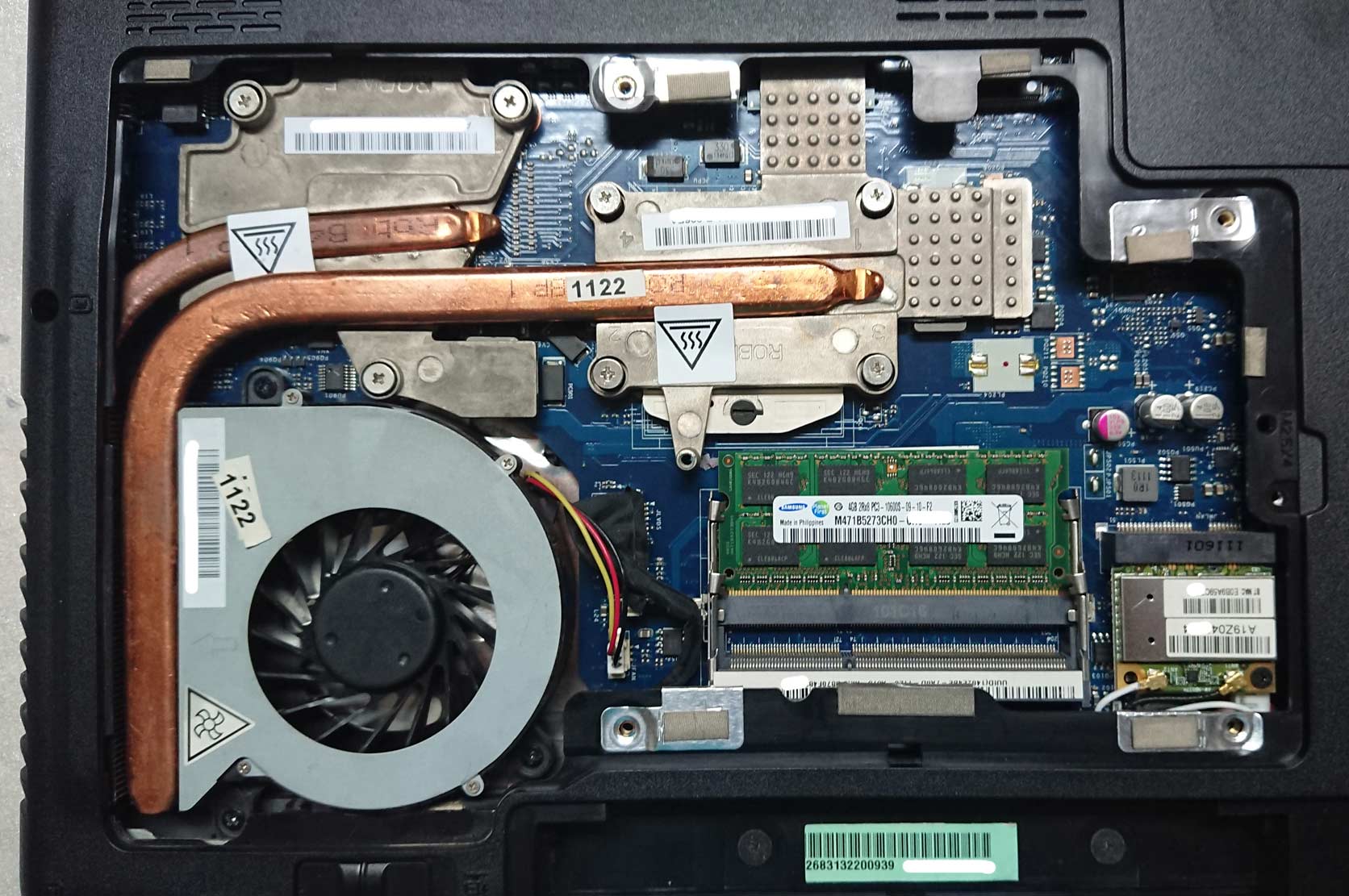
* Once finished, I reinstalled the fan, reconnected its connector, and put the laptop back together.
After reassembly, I powered up the laptop, and the fan was quieter.
If the noise persists or returns after a few days, the fan may need replacing.
Conclusion
In just 30 minutes and for only $4, I was able to revive my noisy laptop fan without spending money on a costly replacement.
The grinding and rattling that had been driving me crazy is now completely gone, and my laptop runs as quietly.
By carefully applying just 2–3 drops of proper bearing lubricant into the fan’s axle, I eliminated the problem easily.
This solution is not permanent, but it would be good to do it every few months.
Before you rush to replace a perfectly functional laptop fan, try this $4 solution first.
A few drops of oil, and suddenly your laptop whispers again instead of screaming for help.
